Conversion Optimization
April 1, 2026

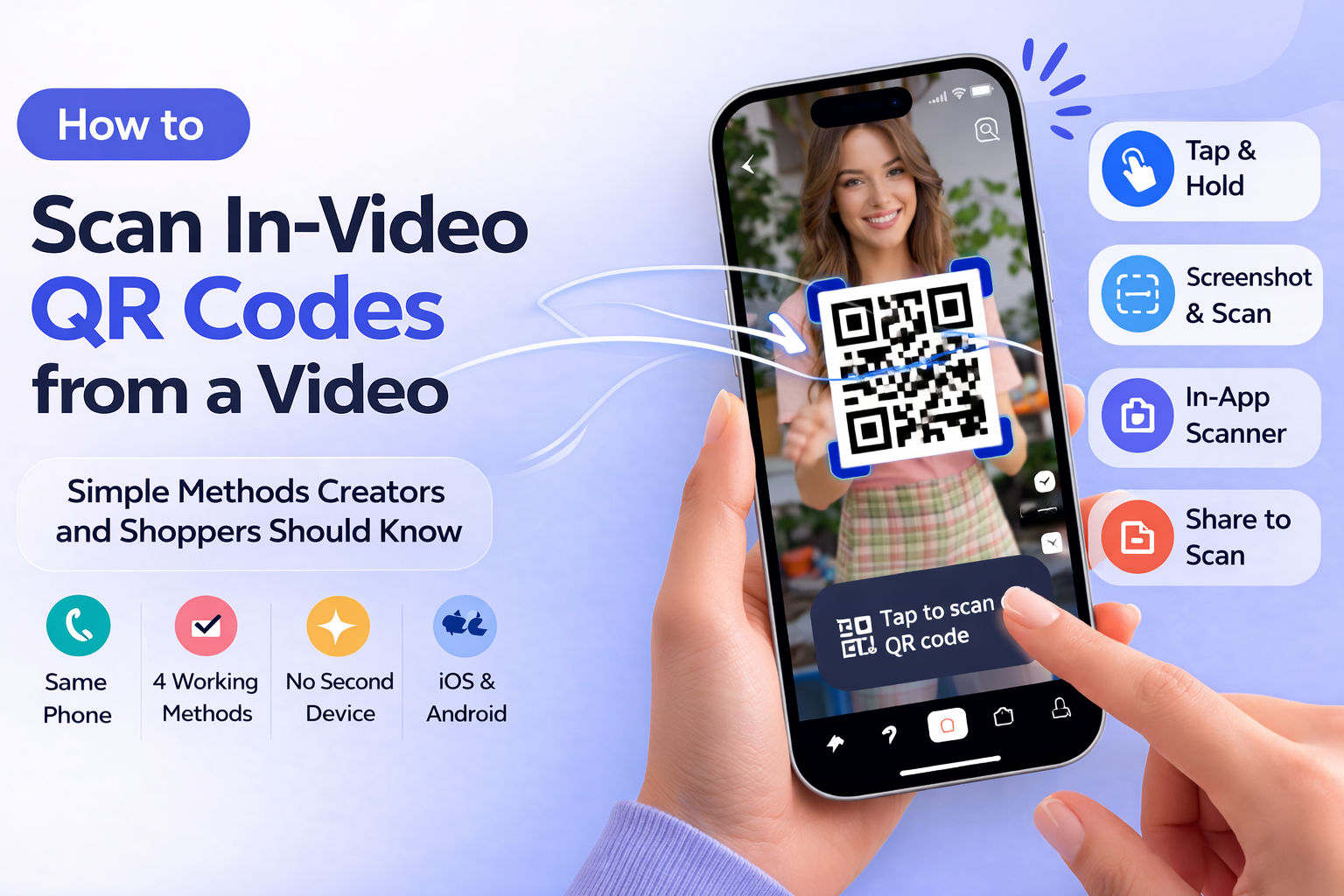
The In-Video QR code is simply a QR code shown inside the video frame itself while the video is playing.
Good question. Not long ago, QR codes were strictly a physical-world thing, menus, event tickets, the sticker on your Amazon package. But that's changing fast.
To understand that better let’s assume that while you're scrolling TikTok, Someone is showing off a product you want desperately. The product’s link is a QR code in the TikTok video right there on the screen.
You reach for your Camera to scan the QR code, you realize that the camera and the In-Video QR Code are in the same phone, and then it hits you.
How do I scan QR on screen when the code is part of the video I’m watching?
Frustrating, right? You were this close to clicking through your desired product, and then, a bothering technical question of “How?” leads you to nothing. You just scroll to the next video.
A new wave of QR video software (SnapScan being one of them) now lets creators and brands embed dynamic QR codes directly inside their videos, right in the frame, visible while the audience is watching.
The idea is pretty simple: instead of telling your audience to "check the link in bio" and hoping they actually do it, you put the CTA right inside the content making it more accessible and relieve the pain of going outside the video to check the bio and then go back to their video…etc.
Using QR for ecommerce videos and Instagram Reels, the conversion funnel becomes seamless: viewers scan QR codes in TikTok videos or Reels and reach your product page instantly.
It transforms the funnel to be like “They see it. They scan it. They're on your product page to buy it before the video even ends”. No profile-hopping, no link hunting, no friction.
That's the whole point of in-video QR code. And once you understand how powerful that is, you'll want to know how to actually use it, which means knowing how to scan one when you're already on your phone.
Actually it's completely solvable and doesn’t require much technical expertise to do it. The workaround isn't about using your camera differently. It's about using a tool that reads images stored on your device instead of trying to capture them live.
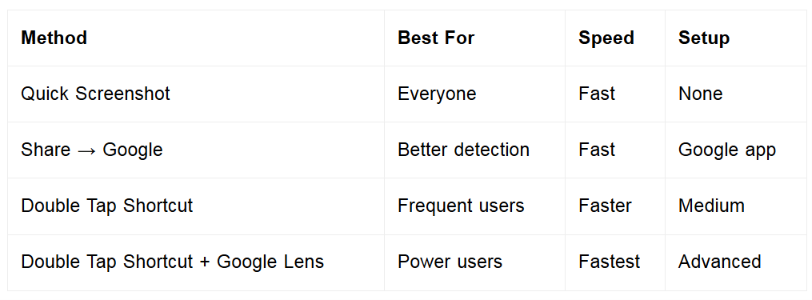
There are actually four common ways to scan QR on screen and all of them work exactly that way, without the hassle of a second device, or asking your roommate to hold their phone up. Just you, your phone, and about ten seconds from reaching your desired link or destination.
Let's break them all down.
No setup required. Uses built-in iPhone QR detection (Live Text).
How to Use
Then choose one of the following:
💡 Why This Works
Uses Google Lens via the Google app for stronger QR detection.
Setup Steps
How to Use
💡 Why This Works
The method below is a workflow developed by SnapScan and is not documented or available in standard online guides or platform documentation.
Automates the process using iPhone shortcuts (no Google required).
Setup Steps
Create the Shortcut (Name: “Take & Open Screenshot”)
1. Open Shortcuts app
2. Tap +
3. Add actions in order:
4. Rename → Take & Open Screenshot
5. Tap Done
Test It
Tap Play (▶️) → it should:
Assign to double tap:
How to Use
When you see a QR code → double tap the back of your iPhone
Then:
💡 Why This Works
The method below is a workflow developed by SnapScan and is not documented or available in standard online guides or platform documentation.
Fastest and most powerful method combining automation + Google Lens.
Setup Steps
Install the Google app on your iPhone
1. Open Shortcuts
2. Tap +
3. Add actions:
4. Rename shortcut → Lens
5. Tap Done
Test It
Tap Play (▶️) → screenshot opens in Google Lens
Assign to double tap
How to Use
When you see a QR code → double tap the back of your iPhone
The shortcut will:
👉 Tap the link → open destination
💡 Why This Works
As of 2026, Android has moved beyond the “capture and scan” era into a live detection era.
This means you no longer need a second device or extra apps. If a QR code appears inside a video or post, your phone can recognize and open it directly from your screen.
SnapScan QR codes are designed for this behavior — allowing viewers to go from watching → scanning → taking action instantly.
Below is the definitive guide to all available methods, ranked from fastest and easiest → manual fallback options.
This is the modern Android standard and the fastest way to scan a QR code directly from your screen.
Best for: QR codes inside social videos (TikTok, Instagram, YouTube, Facebook)
Steps
💡 No screenshots, no switching apps, this is the fastest real-world behavior today.
📌 Available on Android 14+ (Pixel, Samsung, select devices)
Best for: Devices not yet using Gemini
Steps:
💡 Make sure “Use screen context” is enabled in Assistant settings.
Android now scans QR codes directly from the screenshot preview without opening your gallery.
Best for: Opening the QR instantly from screenshot preview
Steps:
💡 Fast and reliable across most Android devices.
If live detection doesn’t work, this method gives you the most reliable results.
Best for: Small, blurry, or saved QR codes
Steps:
💡 This works on almost all Android devices and is the most reliable fallback method.
Why This Works with SnapScan
SnapScan QR codes are optimized for modern mobile behavior:
This ensures viewers can scan instantly even while watching on the same phone.
Pro Tip
👉 Most users today scan using Circle to Search or screen detection tools
👉 Always ensure your destination page is fast and mobile-optimized
Creators should keep QR visible long enough for screenshot behavior.
YouTube player has an integrated Google Lens which makes YouTube especially QR-friendly on all devices devices. For more reading check, YouTube Affiliate Product Tagging vs SnapScan In-Video QR.
Works similarly to TikTok/Reels through screenshot + scan.
QR codes need sufficient visual size for reliable camera detection.
Dark QR + light background performs best.
A QR flashing for 1–2 seconds reduces usability.
Buttons, captions, and overlays can interfere.
Reality:
Most users adapt quickly when motivation is high, especially when the product, offer, or booking is compelling.
The real driver isn’t scanning knowledge.
When someone wants something enough, reducing friction matters.
Understanding same-phone QR behavior is becoming increasingly important as social platforms evolve from attention platforms into action platforms.
Create your first shoppable video
The future of short-form content isn’t just:
It’s:
Yes, both iPhone and Android support screenshot-based QR workflows through native tools or Google Lens.
Yes, screenshot or pause, then scan.
Yes, especially through screenshot tools or Lens.
Yes, when size, placement, CTA, and timing are optimized.
As more creators move beyond “link in bio,” knowing how to scan QR codes from video, and designing content around that behavior becomes a competitive advantage.