
Last Updated
August 5, 2026
How to Scan a QR Code From a Video on your iPhone or Android
How-To
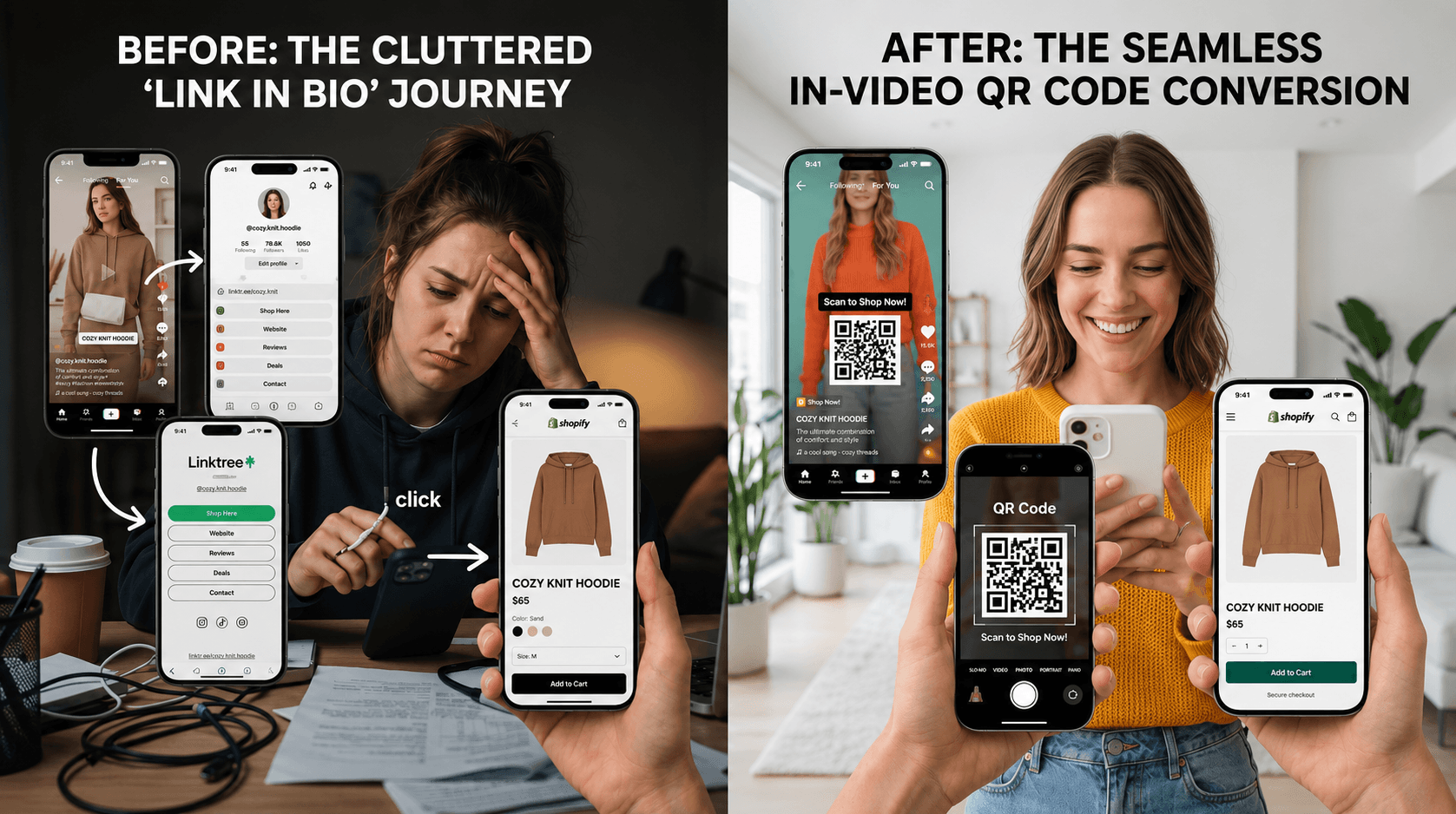
You're watching a TikTok or an Instagram Reel. A QR code appears on screen - it's for a product, a discount, a link. You reach for your camera. Then it hits you: the camera is your phone. You can't point it at itself.
This is the most common friction point with in-video QR codes, and it has more solutions than most people realize - all built into the phone you're already holding. No second device, no giving up on the scan. Both iPhone and Android handle this exact situation natively, and in 2026, most of the methods take under 10 seconds.
This guide covers every working method for how to scan QR code from video content on your phone - organized by device, ranked by speed, and explained in plain terms. Whether you're on a brand-new iPhone, a mid-range Android, or something older, there's a method here that works for you.
Why Scanning a QR Code Inside a Video Is Different
A standard QR code - on a poster, a menu, a package - is designed to be scanned with a camera at a distance. Your phone reads it as an external object in three-dimensional space. That's the classic mobile QR scan - point, detect, tap - and it's seamless.
When the QR code is inside the video you're watching on your phone screen, that model breaks. The camera can't point at its own screen. The code isn't an external object - it's a flat image on a display. You need a different approach: a tool that reads QR codes from saved images, not from a live camera feed.
Once you get that, everything else falls into place. Every method below works by reading the code from an image already on your device - either a screenshot you take, or the video frame itself if your platform supports live image analysis. No second device required.
Context on why this matters: according to Wave Connect's 2026 QR code statistics report, over 102 million US smartphone users are projected to scan QR codes in 2026 .[1], up from 52.6 million in 2020.[8] QR codes in videos are part of that growth - and knowing how to scan a QR code from the same phone is quickly becoming a baseline skill.
Scan QR on iPhone: Every Method, Ranked by Speed
iPhone has three native paths for scanning a QR code from video content, and none of them require downloading anything. They're ranked here from fastest to most universally compatible.
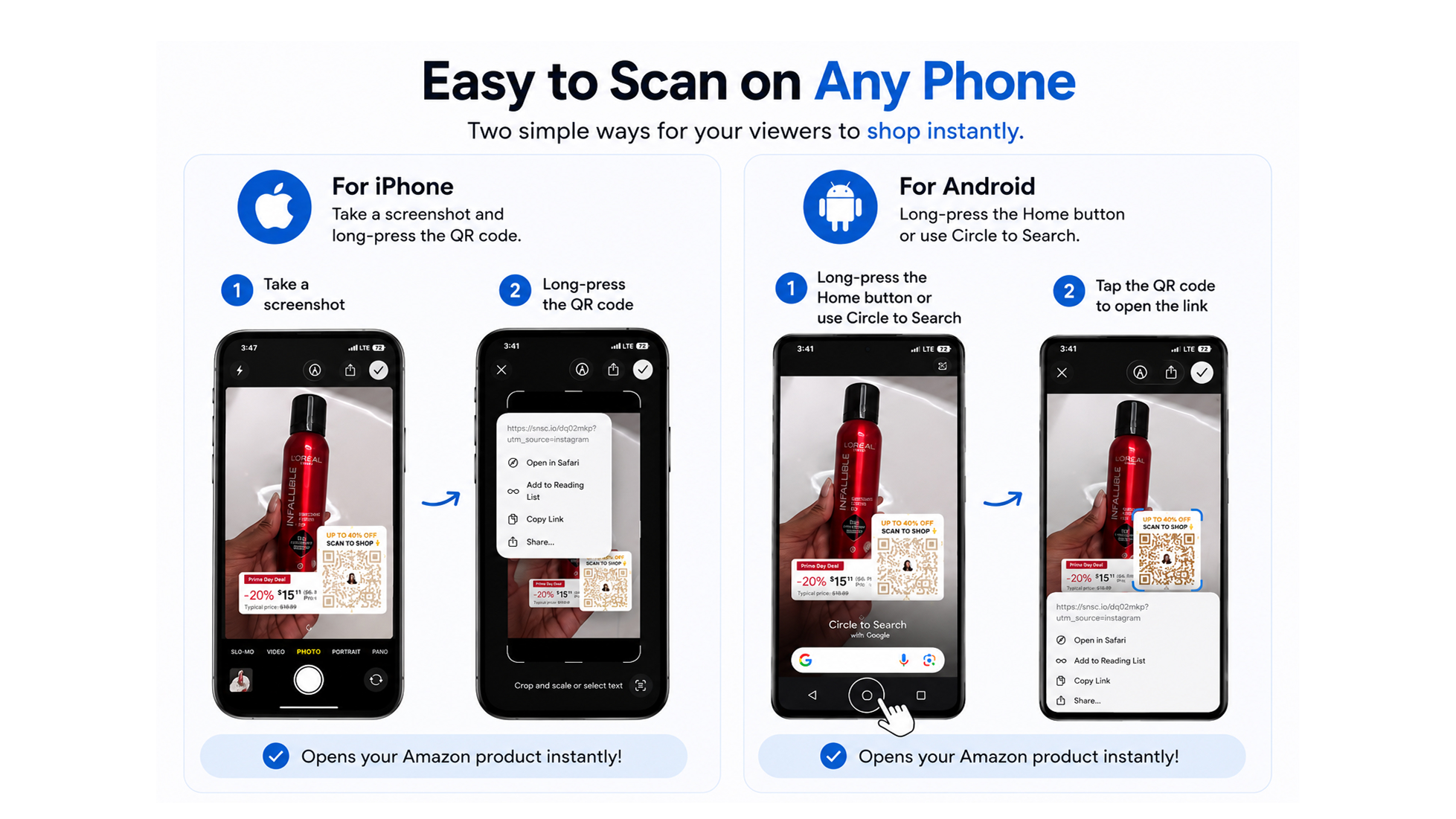
Method 1 - iPhone QR from a Screenshot by Live Text Long-Press (iOS 15+) – Fastest
No setup required. Uses built-in iPhone QR detection (Live Text).
Start here if you're on a recent iPhone. Apple's Live Text feature - built into the Photos app since iOS 15 - recognizes QR codes in saved images and lets you interact with them directly.
• Pause the video when the QR code is clearly visible on screen
• Take a screenshot (side button + volume up on Face ID models; home + side button on older models)
• Open the screenshot
• Long-press directly on the QR code in the image
• A popup appears with the destination link - tap to open
If the popup doesn't appear: go to Settings > Camera and confirm “Scan QR Codes” is toggled on. Also verify you're running iOS 15 or later under Settings > General > About.
According to Wave Connect's iPhone scanning guide (2026), this method works on every iPhone since the iPhone 6s running iOS 15+.[2] Most iPhone users in the US are already on a compatible version.
Method 2 - Screenshot + Google app
Uses Google Lens via the Google app for stronger QR detection.
Setup Steps
- Install the Google app on your iPhone
- Ensure “Search with Google” appears in your Share menu
How to Use
- Take a screenshot (Power + Volume Up)
- Open the screenshot preview
- Tap Share (⬆️)
- Tap Search with Google (Search with Lens)
- QR code link will be detected
- Open link
💡 Why This Works
- Google Lens detects QR codes from images
- More reliable for small or complex QR codes
- Works directly from screenshots
Method 3 - Double Tap Shortcut (Native iPhone)
Exclusively on SnapScan
The method below is a workflow developed by SnapScan and is not documented or available in standard online guides or platform documentation.
Automates the process using iPhone shortcuts (no Google required).
Setup Steps
Create the Shortcut (Name: “Take & Open Screenshot”)
1. Open Shortcuts app
2. Tap +
3. Add actions in order:
5. Tap Done
2. Tap +
3. Add actions in order:
- Take Screenshot
- Go to Home Screen
- Show Screenshot in Quick Look (tap on input>select variable> tap on screenshot)
5. Tap Done
Test It
Tap Play (▶️) → it should:
- Take screenshot
- Open it instantly
Assign to double tap:
- Go to Settings → Accessibility → Touch
- Tap Back Tap
- Tap Double Tap
- Scroll down and select Take & Open Screenshot
How to Use
When you see a QR code → double tap the back of your iPhone
Then:
Then:
- Long press the QR code → open link
- OR tap Live Text → tap QR → open link
💡 Why This Works
- Removes manual screenshot step
- Fully native (no external apps)
- Faster interaction flow
- Ideal for frequent users
Method 4 - Double Tap Shortcut + Google Lens (Advanced)
Exclusively on SnapScan
The method below is a workflow developed by SnapScan and is not documented or available in standard online guides or platform documentation.
The method below is a workflow developed by SnapScan and is not documented or available in standard online guides or platform documentation.
Fastest and most powerful method combining automation + Google Lens.
Setup Steps
Install the Google app on your iPhone
1. Open Shortcuts
2. Tap +
3. Add actions:
- Take Screenshot
- Search Image with Lens
4. Rename shortcut → Lens
5. Tap Done
Test It
Tap Play (▶️) → screenshot opens in Google Lens
Assign to double tap
- Settings → Accessibility
- Touch → Back
- Tap Double
- Tap Select Lens
How to Use
When you see a QR code → double tap the back of your iPhone
The shortcut will:
👉 Tap the link → open destination
The shortcut will:
- Take a screenshot
- Open Google Lens
- Detect the QR instantly
👉 Tap the link → open destination
💡 Why This Works
- Fully automated (no manual steps)
- Most accurate detection with Google Lens
- Fastest scanning experience
- Ideal for power users
Which Method Should You Use?
| Method | Best For | Speed | Setup |
| Quick Screenshot | Everyone | Fast | None |
| Share → Google | Better detection | Fast | Google app |
| Double Tap Shortcut | Frequent users | Faster | Medium |
| Double Tap Shortcut + Google Lens | Power users | Fastest | Advanced |
Final Tip
All methods work perfectly with in-video QR codes like SnapScan allowing viewers to scan instantly at the moment of intent, without leaving the video or losing attention.
Android: Every Method, Ranked by Availability
Android is more fragmented than iOS - methods that work on a Pixel 9 may not exist on a budget Android running a stripped-down camera app. The options below are ranked from most capable (but device-specific) to most universally available.
Method 1 - Circle to Search (Fastest – No Steps)
This is the modern Android standard and the fastest way to scan a QR code directly from your screen.
Best for: QR codes inside social videos (TikTok, Instagram, YouTube, Facebook)
Steps
- Long-press the Home button or navigation handle
- The screen freezes with a detection overlay
- Circle the QR code
- A link preview appears instantly
- Tap to open
💡 No screenshots, no switching apps, this is the fastest real-world behavior today.
📌 Available on Android 14+ (Pixel, Samsung, select devices)
Method 2 - Google Assistant
Best for: Devices not yet using Gemini
Steps:
- Activate Assistant (long-press Home or say “Hey Google”)
- Tap “Search Screen” or “What’s on my screen?”
- Assistant analyzes the screen
- Tap the detected QR link
💡 Make sure “Use screen context” is enabled in Assistant settings.
Method 3 - Screenshot + Smart Scan
Android now scans QR codes directly from the screenshot preview without opening your gallery.
Best for: Opening the QR instantly from screenshot preview
Steps:
- Pause the video
- Take a screenshot (Power + Volume Down)
- Tap the QR
- Open the detected link
💡 Fast and reliable across most Android devices.
Method 4 - Google Photos or Google Lens
If live detection doesn’t work, this method gives you the most reliable results.
Best for: Small, blurry, or saved QR codes
Steps:
- Take a screenshot of the video
- Open the image in Google Photos or open it using the Google Lens app
- Tap the Lens icon (if using Photos) or scan directly (if using Lens app)
- Tap the detected link to open
💡 This works on almost all Android devices and is the most reliable fallback method.
Why This Works with SnapScan
SnapScan QR codes are optimized for modern mobile behavior:
- Placed in visible, safe areas
- Displayed long enough to scan
- Designed for mobile screens
This ensures viewers can scan instantly even while watching on the same phone.
Pro Tip
👉 Most users today scan using Circle to Search or screen detection tools
👉 Always ensure your destination page is fast and mobile-optimized
A Note for Samsung Users
Samsung Galaxy owners get two extra paths beyond the standard Android methods.
Bixby Vision - built into the Gallery app - can read QR codes from saved screenshots: open the screenshot in Gallery, tap the Bixby Vision icon, and it decodes the code on the spot.
Samsung Internet browser, the default browser on Galaxy devices, also has a QR scanner tucked into its menu. Both work on Galaxy phones going back several generations, which makes them useful fallbacks on older devices where Circle to Search isn't available.
The Browser Option: Online QR Scanners
One last option that works on any device with a browser: web-based QR scanners. Sites like webqr.com or scanqr.org let you upload a screenshot and decode it directly in the browser - no app installs, no account.
It's slower than the native methods above, but it's the universal fallback when nothing else is available, and it works identically on iPhone, Android, or even a desktop. Upload the screenshot, get the link, done.
Which Method Should You Use? Quick Decision Guide
The right method to scan QR phone screen content depends on your device and the situation. Here's the full comparison:
|
Simple decision rule: iPhone on iOS 15+: use Live Text long-press in Photos. Done. Android on Pixel 6+ or Samsung S24+: use Circle to Search. Done. Any other device: screenshot + Google Lens Qr scan. Works everywhere. |
Modern smartphones made it much easier to scan QR code from screen content without needing a second device. What used to feel like a workaround is now built directly into iPhone and Android workflows.
That shift is a big reason why in-video QR code how to scan searches have grown so quickly across TikTok, Instagram Reels, and YouTube Shorts. Viewers no longer need to pause the experience, open a laptop, or manually type a URL just to reach an offer or product page.
For most users, the fastest workflow is simple: pause the video, take a screenshot, and scan the QR code from screenshot tools already built into the phone.
What If the Scan Isn't Working?
A few things go wrong consistently. Here's what to check before giving up:
The QR code is blurry in the screenshot
Pause the video at the exact frame where the code is sharpest and fully visible before screenshotting. If the code is animated (fading in or out), catch it at peak opacity. Blurry or partial codes won't decode reliably on any platform.
Live Text isn't appearing on iPhone
Go to Settings > Camera and confirm 'Scan QR Codes' is enabled. Also check Settings > General > Language and Region - Live Text needs to have at least one language enabled. If both are fine and it still doesn't show, update to the latest iOS version.
Circle to Search isn't available on your Android
Circle to Search requires Pixel 6 or newer, Samsung Galaxy S24 series or newer, or select Android 14 devices with the feature enabled. If your device doesn't qualify, use the “Google Photos + Lens” method instead - it works on any Android with Google Photos installed.
How Same-Phone QR Scanning Skyrockets Video Conversions for Creators
Most people learn these methods reactively - they see a QR code in a video, want what it's offering, and figure out how to scan it in the moment. But if you're a creator or marketer thinking about using in-video QR codes in your own content, understanding the viewer's scanning experience is just as important as building the code. If you're on the creator side, start with our walkthrough on how to add a QR code in TikTok videos.
The reason scan QR code from video content is worth the effort - for both creators and viewers - is what it replaces. The standard alternative is 'link in bio': the viewer hears a verbal CTA, stops watching, navigates to your profile, opens your bio link tool, and hunts for the right link. According to Tapmy's 2026 link-in-bio CTR benchmarks, that entire chain produces roughly a 1% click-through rate from the audience that watched the video. We covered why that funnel leaks - and what replaces it - in our breakdown of the best link in bio alternative for short-form video.[6]
An in-video QR code that a viewer can scan in 10 seconds - screenshot, long-press, tap link - closes most of that gap. The conversion happens while the video is still playing, before the impulse fades and before the next video loads. According to SnapScan's own revenue modeling, in-video QR scan rates average around 4.5% from the same audience watching the same content.[7] The full feature set includes dynamic destinations and per-video scan tracking, so the code keeps working even when your campaign changes.

Figure 2: US Smartphone Users Scanning QR Codes (Millions), 2020-2025
Knowing how to scan isn't a niche skill anymore. With over 102 million Americans projected to scan QR codes in 2026, this is mainstream behavior.[1] The friction has moved from 'will they know how to scan?' to 'is the code visible and worth scanning?' That's a much better problem to have.
Frequently Asked Questions
Can You Scan a QR Code From a TikTok Video?
Yes. You can scan a QR code directly from a TikTok, Instagram Reels, YouTube Shorts, or Snapchat video, even if you're watching on the same phone. Most modern smartphones now support QR detection through screenshots, Google Lens, Circle to Search, or built-in Photos tools. For creators, this is important because it removes one of the biggest objections to in-video QR codes: viewers no longer need a second device to scan and convert.
Can I scan a QR code in a video without a second phone?
Yes. Take a screenshot of the video frame, then read the code from the image: long-press it in Photos on iPhone (iOS 15+), or tap the Lens icon in Google Photos on Android. On newer Android flagships, Circle to Search QR codes skips the screenshot entirely - draw a circle around the code while the video plays.
Why won't my iPhone scan a QR code from a screenshot?
Three usual causes: you're on iOS 14 or older (Live Text needs iOS 15+), 'Scan QR Codes' is toggled off under Settings > Camera, or the code in the screenshot is blurry or partially cut off. Fix the setting, update iOS, or re-screenshot at the frame where the code is sharpest - that solves it in almost every case.
How Do I Scan a QR Code From a Screenshot?
The fastest method is usually:
- Pause the video when the QR code is fully visible
- Take a screenshot
- Open the screenshot
- Use the built-in QR detection tool:
- On iPhone: long-press the QR code
- On Android: tap Google Lens or Circle to Search
Once detected, your phone will instantly open the destination link. This workflow has become standard behavior for many TikTok and Reels users, especially in short-form shopping and creator content.
I'm a creator, how do I know if people are actually scanning my codes?
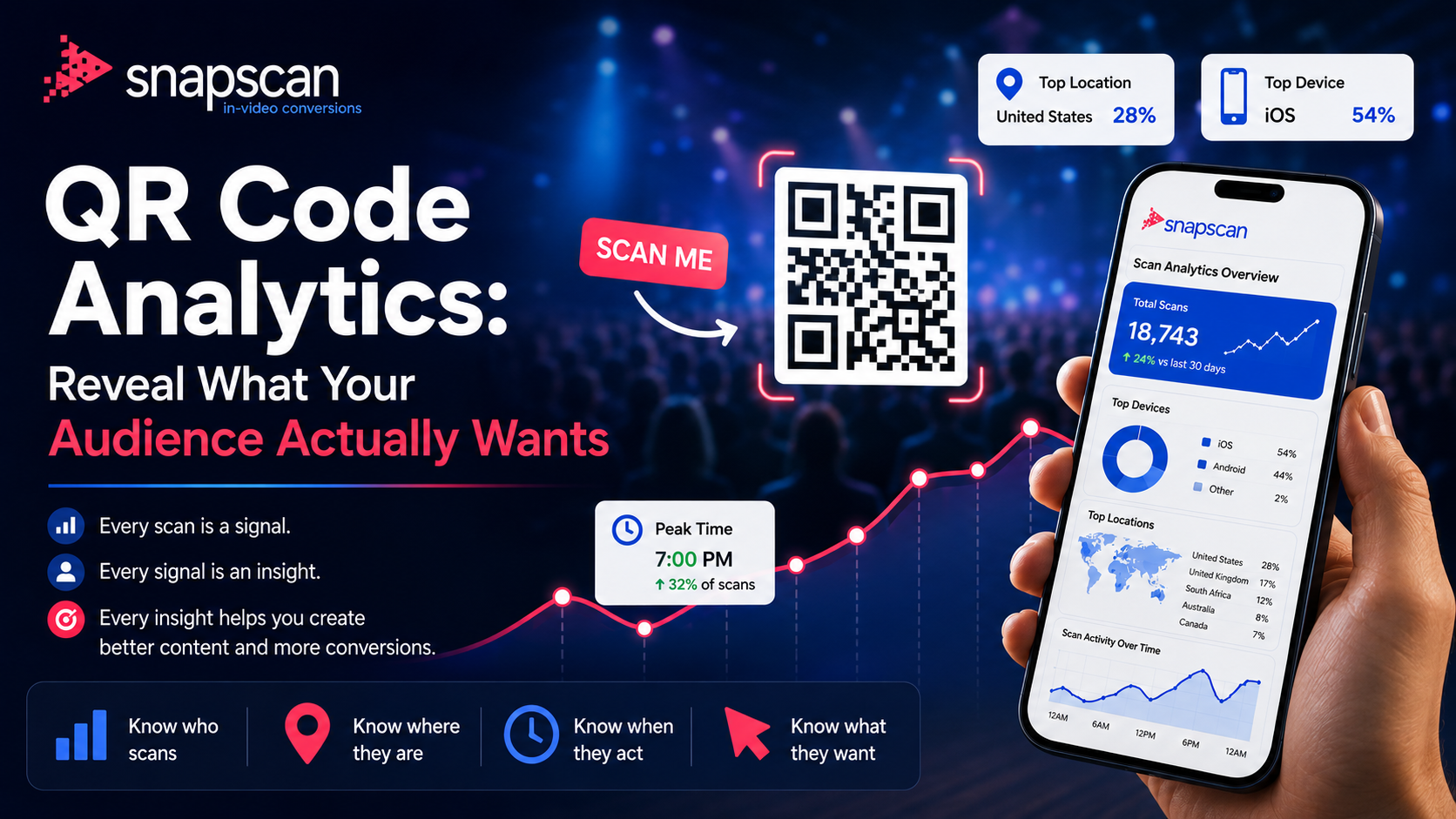
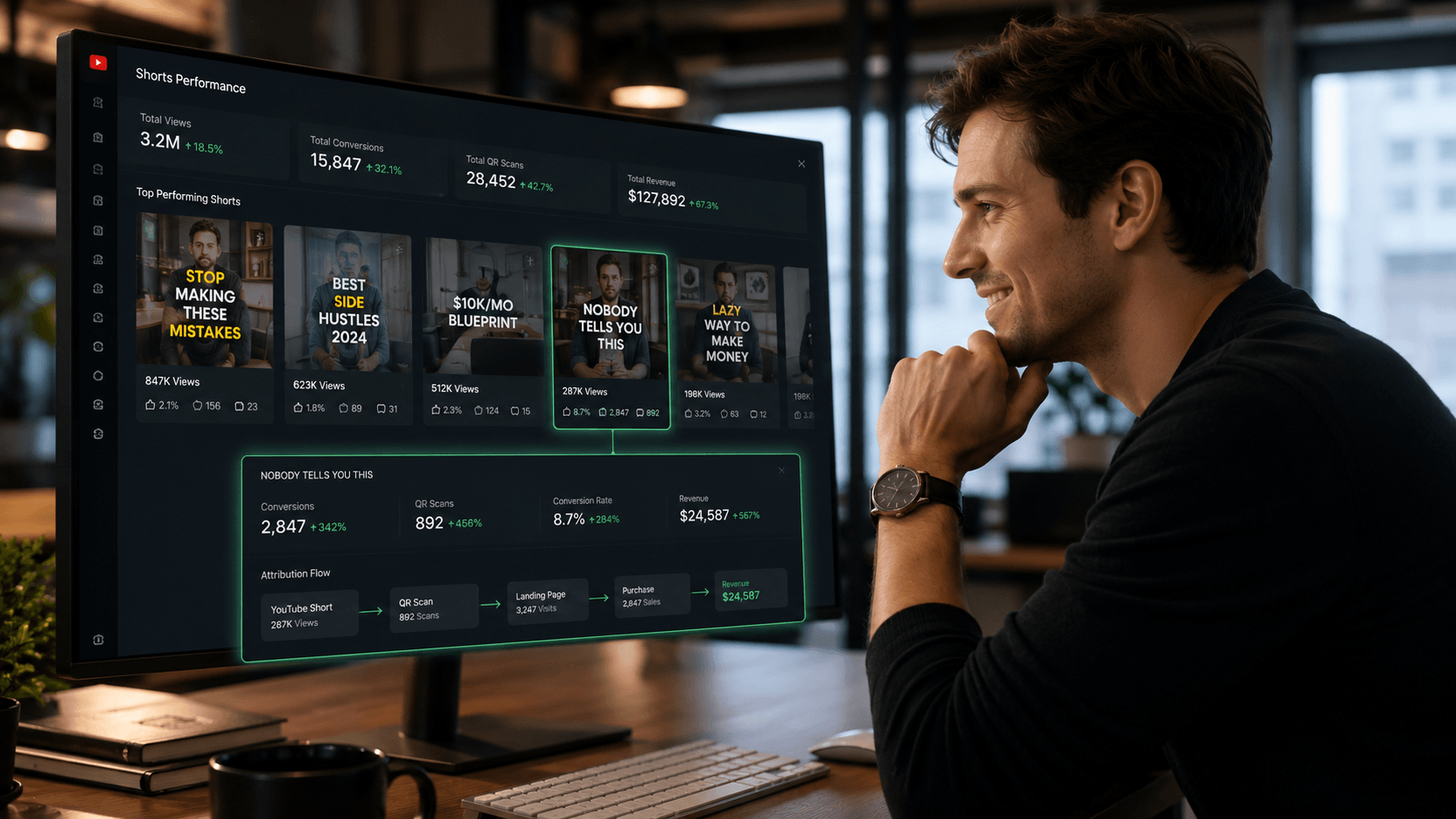
Use a dynamic QR platform that tracks scans per video - you'll see scan counts, devices, and locations for every code. We're covering how to read that data in our upcoming guides to QR code analytics and video lead generation.
|
Create your own in-video QR code. Try SnapScan free at snapscan.link |
REFERENCES
[1] Wave Connect - "QR Code Statistics 2026: 60+ Facts and Data" (wavecnct.com) https://wavecnct.com/blogs/qr-code-statistics
[2] Wave Connect - "How to Scan QR Codes on iPhone: 4 Easy Methods (2026)" https://wavecnct.com/blogs/how-to-scan-qr-code-iphone
[3] QRCodeDynamic - "How to Scan QR Code from Screenshot: 2026 Guide" https://qrcodedynamic.com/blog/how-to-scan-a-qr-code-from-a-screenshot/
[4] DevX - "How To Scan a QR Code on Android: Camera, Google Lens & Quick Settings (2026)" - tested on Samsung Galaxy S25, Pixel 9, OnePlus 13, Android 15 https://www.devx.com/how-tos/how-to-scan-a-qr-code-on-android/
[6] Tapmy - "Link in Bio Click-Through Rate Benchmarks by Platform" (2026) https://tapmy.store/blog/link-in-bio-click-through-rate-benchmarks-by-platform-2026-data
[7] SnapScan - Official revenue modeling and in-video QR conversion data https://snapscan.link
[8] Scanqueue - "QR Code Adoption Statistics 2026"
https://scanqueue.com/blog/qr-code-adoption-small-business
Related Blogs
Analytics & Attribution
August 12, 2026