Affiliate Marketing
September 25, 2026
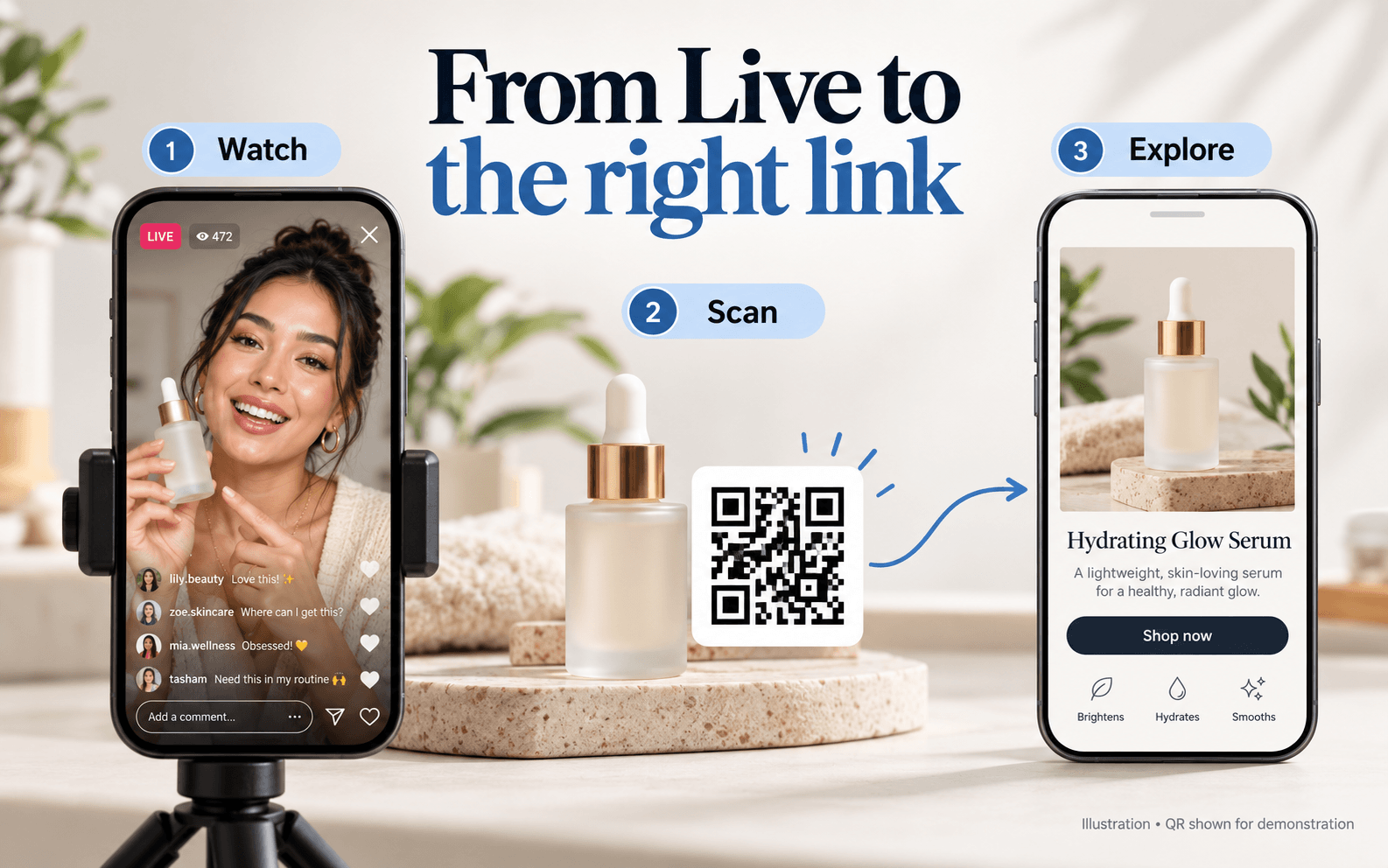
You're 20 minutes into an Instagram Live. Four hundred people are watching. Someone types "where can I buy this?" and three more people ask the same thing. You say "link in bio," and the moment they leave the Live to go look, you've probably lost them.
Instagram Live is one of the best places to sell, because it packs the demo, the questions and the urgency into one moment. But it gives you almost nothing to sell with. There are no product tags and no tappable links. The only call to action is asking people to leave.
A QR code on Instagram Live fixes that. Put a scannable code on screen and viewers go straight to the exact page you're talking about. This guide shows two ways to add one: from your phone with the built-in media button, and from your computer with OBS and Instagram Live Producer. It also covers the step most guides skip, which is helping people scan a code that's on the same phone they're watching on.
Instagram used to have a native answer here. Live Shopping let you tag products during a broadcast. Instagram ended it on March 16, 2023, saying it would put its effort into ads instead.[6] Nothing has replaced it inside Live. Links typed into Live comments aren't clickable, and your bio link is the same single link for every Live you've ever run.
Creators have worked around this in three ways, and each has a cost:
• "Link in bio." The viewer has to leave the Live, open your profile, tap the link and then find the product again. Every step is a chance to drop off.
• Saying the URL out loud. This only works if people remember it and type it correctly, and few will.
• Comment-to-DM automation. Viewers comment a keyword and a bot sends them the link in a DM.[8] It works, but it needs a third-party tool, and the viewer still has to leave the Live to open their messages.
An on-screen QR code takes the shortest route. The viewer scans and the exact page opens. And because the code is part of the video, it's still there in the replay and in any clip you cut from the Live later.
|
The core problem with selling on Instagram Live: Live is where intent peaks: people are watching you use the product and getting their questions answered in real time. But Instagram gives you no way to act on that intent inside the stream. A QR code is the one call to action that rides along with the video itself. |

Figure 1: Four ways to send Instagram Live viewers to a link, compared
Whichever method you use, the QR code goes on a vertical slide or overlay. Most of the work happens before you go live, and the main thing to get right is placement. Instagram covers a large part of the screen with its own interface, and a code hidden under comments is useless.
Start with a 1080 x 1920 px canvas, which is the standard Story size, in Canva or any design tool. Social Smarty's Instagram Live tutorial uses ruler guides to mark where Instagram's interface lands on screen:[3]
• 108 px from the top: everything above this is covered by your name, the LIVE badge and the viewer count.
• About 655 px from the top, right of 720 px: when you share an image, your camera shrinks into a small window in the top-right corner. Keep text and the code out of that box.
• 1340 px from the top: everything below this is where comments, join requests and the comment box appear.
That leaves a clear band between roughly 655 and 1340 px across the full width. That's where your QR code goes. The area above it, on the left, is a good place for the headline, product name or price. Your Social Team gives the same advice in plainer terms: keep content in the middle, because comments will sit over the bottom of the screen.[2]

Figure 2: The Instagram Live safe zone for a 1080 x 1920 QR slide
A few rules make the code easy to scan once it's in place:
• Make it big. Aim for at least a third of the slide width (360 px or more on a 1080 px canvas). A Live stream is compressed video, and small codes break up.
• Keep the contrast high. Use a dark code on a light background, with a clear margin around it. Avoid placing it over a busy photo.
• Add one line of text. "Scan to shop" or "Scan for 20% off" tells people what they get. Put a short URL under the code as a backup for anyone who can't scan.
• Use a dynamic, trackable code. Generate the QR in SnapScan instead of a free static generator. You can change where it points after the Live, and you can see how many people scanned it.
If you sell several products, make one slide per product, each with its own QR code. You can then see which product got scanned, not just whether the Live drove traffic. For more on sizing, contrast and timing for QR codes in video, see our guide to QR code placement in short videos.
This is the simplest option, and it works on any account, personal, creator or business. You go live in the Instagram app as usual and share your QR slide from your camera roll partway through. Instagram's own Live guide lists adding images during the stream as a standard feature.[5]
1. Save your slides to your phone. Download them from Canva (or AirDrop or email them to yourself) and put them in your camera roll in the order you'll present them.[3] That makes them quicker to find mid-stream.
2. Go live. Open Instagram, tap +, choose Live, and start your broadcast as usual.
3. Tap the media icon. It's the small image icon on the Live screen. Your camera roll opens, and viewers can't see it while you browse.[1]
4. Pick your QR slide. The slide fills the screen for viewers, and your camera moves into a small window in the corner. That window is the box your slide design left empty.
5. Switch or stop. Tap the icon again and choose "Choose different asset" to show the next slide, or "Stop sharing" to go back to full-screen camera.[1]
Two things to know before relying on this method. First, if you bring a guest onto the Live, your shared image only shows in your half of the split screen, so the edges can get cropped.[2] Keep the code centered on the slide. Second, while the slide is up, viewers mostly see the slide, not you. Plan short QR moments, such as after a demo or when announcing a deal, instead of leaving it up the whole time.
If you want the QR code on screen the whole time, next to your face instead of replacing it, stream from your computer. Instagram's Live Producer gives you a stream URL and key that you paste into broadcasting software like OBS or Streamlabs. It's available to creator and business accounts, not personal ones.[7]
1. Get your stream key. On instagram.com on desktop, choose Create, then Live. Set up the title and audience, then copy the stream URL and stream key.[7]
2. Set up a vertical canvas. Instagram Live is 9:16. The recommended spec is 720 x 1280 at 30 fps, with a video bitrate between 2,250 and 6,000 kbps.[7] Set your OBS canvas to match.
3. Add the QR as an Image source. In OBS, under Sources, click +, choose Image, and select your QR file. Save it as a PNG with a transparent background so only the code and its label show.[4]
4. Arrange the layers. OBS sources stack like layers. Put your camera underneath and the QR on top, then drag it into position.[4]
5. Keep it above the comment area. Comments appear across the lower part of the screen, so don't put the code or other graphics there.[4] The middle-right of the frame usually works well.
6. Go live. Paste the stream URL and key into OBS, start streaming, then click Go Live in Live Producer.
The same setup lets you add your logo, a lower-third with the offer, or a looping background behind your camera. If you swap offers during the stream, give each one its own QR image source and toggle them on and off.

Figure 3: Phone method vs. desktop streaming method for adding a QR code to Instagram Live
|
Question |
Phone (media button) |
OBS + Live Producer |
|
Account type |
Any account |
Creator or business only |
|
Equipment |
Just your phone |
Computer, webcam, OBS or Streamlabs |
|
QR on screen with your face |
No, the slide takes over and you shrink to a corner |
Yes, the code stays up the whole time |
|
Setup time |
About 10 minutes for slides |
About 30 to 60 minutes the first time |
|
Best for |
Occasional Lives, quick product drops |
Weekly shows, live selling, workshops |
This is the part most QR guides skip. Most people watch Instagram Live on their phone, and you can't point a phone's camera at its own screen. If you don't plan for that, your QR code only works for the smaller group watching on a laptop or tablet.
The good news is that modern phones can read a QR code straight off their own screen. The SnapScan Help Center has step-by-step guides for both platforms.[9] Here's how those methods apply to a Live.
On iPhone
Apple's built-in tools work from a screenshot, so the viewer captures the code first and opens it from the preview, without leaving the Live:[9]
• Quick screenshot (no setup): when the QR code is on screen, press the Side button + Volume Up. Tap the screenshot preview, then press and hold the QR code, or tap the Live Text icon and tap the code, to open the link.
• Screenshot with Google Lens: with the Google app installed, open the screenshot's share menu and tap "Search with Google". This helps with small or hard-to-read codes.
• Double-tap shortcut (for regular viewers): in the Shortcuts app, create a shortcut called "Take & Open Screenshot" with three actions: Take Screenshot, Go to Home Screen, and Show Screenshot in Quick Look. Then go to Settings → Accessibility → Touch → Back Tap → Double Tap and choose it. Now a double tap on the back of the phone captures the screen and opens it, ready to long-press the code.
• Double-tap with Google Lens: the same Back Tap shortcut, set up to open the screenshot in Google Lens instead. This is the fastest option, but it takes the most setup.
On Android
Android can detect a QR code directly on the live screen, which suits Instagram Live well:[9]
• Circle to Search (fastest, Android 14+ on supported Pixel and Samsung phones): long-press the Home button or navigation handle, circle the QR code, and tap the link preview. The screen freezes while you circle, so the moving stream isn't a problem.
• Google Assistant: activate Assistant, tap "Search screen" (or ask "What's on my screen?"), and tap the detected link. "Use screen context" needs to be turned on in Assistant settings.
• Screenshot + smart scan: press Power + Volume Down while the code is on screen, then tap the QR code in the screenshot preview. The Help Center suggests pausing the video first. You can't pause a Live, so just capture while the code is up (pausing does work on the replay).
• Google Photos or Google Lens (most reliable fallback): open the screenshot in Google Photos and tap the Lens icon, or open it in the Lens app, then tap the detected link.
And anyone watching on a laptop, tablet or TV can simply point their phone camera at the code.

Figure 4: How viewers scan your QR code on the same phone
Viewers won't do this unless you ask. Build it into your script and say it every time the code goes up:
|
Say this on the Live: "Want the link? On iPhone, screenshot this and press and hold the code in the preview. On Android, hold your home button and circle the code. It takes you straight to the page. I'll leave it up for the next minute." |
Three habits make a noticeable difference. Leave the code up for at least 30 to 60 seconds, because people need time to capture it. Bring it back each time new viewers arrive or the offer comes up again. And keep the short URL under the code, so anyone who can't scan can still type it. For viewers who come back often, such as a weekly show audience, share the Help Center link in your bio or Stories so they can set up the double-tap shortcut once and use it on every Live.
To be clear, the viewer does leave Instagram when they open the link. A QR code doesn't keep them inside the app. What it removes is the detour through your profile, your bio link and a link-in-bio menu before they reach the right product.
A Live doesn't end when you stop streaming. Instagram can save your broadcast to your archive and lets you share the finished Live as a reel on your profile.[5] Archived Lives are kept for 30 days,[10] so share the replay or download it if you want to keep it.
This is where an on-screen QR code beats every other option. A pinned comment or a comment-to-DM keyword doesn't come with the replay. A QR code that's in the frame does. And when you cut the best moments into Reels, the code is already in those clips, so viewers can scan it there too.
|
Why a dynamic QR code matters for Lives: - Change the destination after the Live, for example from the live-only deal to the regular product page, without editing the replay - See scans per Live and per product, instead of one bio-link total for everything - Get device and location data per scan to see where your Live audience actually converts - Reuse the same code across the replay, the reel and any clips you post later |
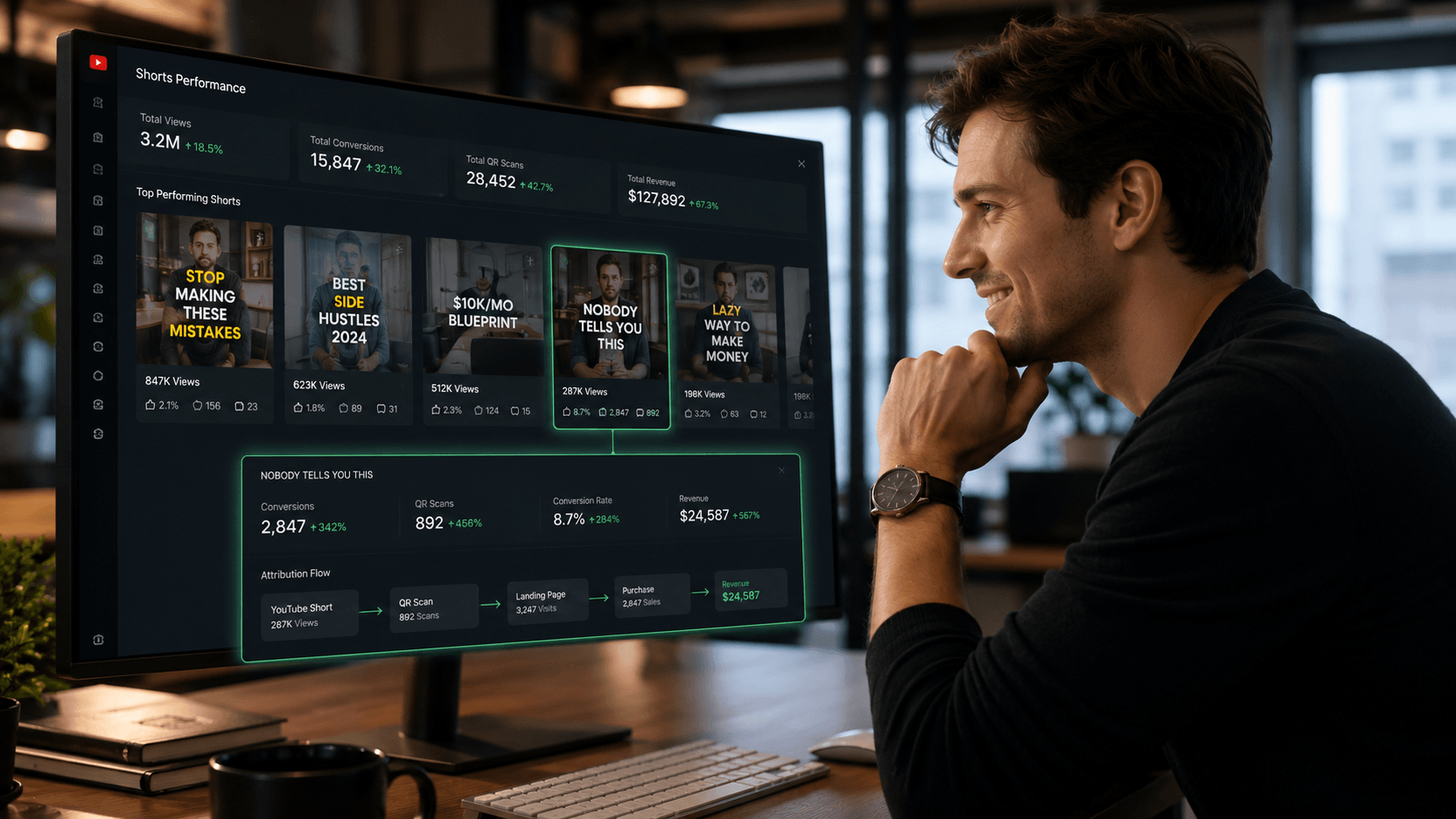
That tracking is the bigger long-term win. Instagram's Live insights show how many people watched and engaged. They don't show which Live sent people to your store. Giving each Live (or each product) its own QR code shows you which shows and offers bring in buyers, the same idea we covered for short-form video in YouTube Shorts conversion tracking. SnapScan logs every scan against the code that was scanned, with device and location data included in the core feature set.[11]
The opportunity is real. Live commerce has grown quickly: INRO's 2026 roundup puts US livestream e-commerce at $14.64 billion in 2025, up nearly 50% year over year.[8] Instagram is still the platform where many creators have their most engaged, highest-trust audience. A QR code turns that attention into a measurable path to a sale. If you want the bigger picture on closing that gap, read how to turn video views into conversions.
Not natively. Instagram ended product tagging in Live in March 2023,[6] and links in Live comments aren't clickable. Your options are your bio link, a comment-to-DM tool, or an on-screen QR code that sends viewers straight to the page.
After you go live, tap the small image icon on the Live screen and choose a photo from your camera roll. Tap it again and pick "Choose different asset" to switch slides, or "Stop sharing" to return to your camera.[1] Design slides at 1080 x 1920 px and keep important content in the middle of the frame.
Yes. On iPhone, take a screenshot and press and hold the code in the preview (or use Live Text), or set up a Back Tap shortcut that captures and opens the screen in one double tap. On Android 14+, Circle to Search reads the code straight off the screen, and Google Photos or Lens works on any Android screenshot. The SnapScan Help Center has full steps for both.[9] Tell viewers how to do it out loud, and add a short URL under the code as a backup.
No. Sharing a QR slide from your camera roll works on any account. You only need a creator or business account if you want to stream from a computer with Live Producer and software like OBS.[7]
At least a third of the slide width, about 360 px or more on a 1080 x 1920 px canvas. Place it in the middle band of the screen, roughly between 655 and 1340 px from the top, so the comments and your camera window don't cover it. Test it from a second phone before you go live.
Only with a dynamic QR code. A static code always points to the same URL. A dynamic code, like the ones SnapScan creates, can be updated at any time, so the code in your replay and clips can move from a live-only deal to your regular product page without re-editing anything.[11] If you're comparing this approach with bio links, look out for our upcoming QR code vs link in bio breakdown and our guide to QR code analytics.
|
Put a trackable QR code on your next Instagram Live. Try SnapScan free at snapscan.link - see pricing |
REFERENCES
[1] Homemade Social - "How to Add Photos to Instagram Live" - in-Live media sharing steps https://www.homemadesocial.com/blog/how-to-add-photos-to-instagram-live
[2] Your Social Team - "How to Add Slides, Photos and Videos to Your Instagram Lives" - safe-area and guest split-screen notes https://yoursocial.team/blog/how-to-add-slides-photos-and-videos-to-your-instagram-lives
[3] Social Smarty (Jodine) - YouTube tutorial: creating and using slides for Instagram Live - Canva guide positions (108 / 655 / 1340 / 720 px)
[4] Willy Chin - YouTube tutorial: adding your logo and motion graphics to your IG Live feed - OBS image sources, transparent PNG, layers
[5] Instagram - "Instagram Live Tips & Tricks: Getting the Most Out of Live" (July 2024) https://about.instagram.com/blog/tips-and-tricks/instagram-live-tips-tricks
[6] TechCrunch - "Instagram is killing Live Shopping in March, will focus on ads instead" (Feb 2023) - product tagging in Live ended March 16, 2023 https://techcrunch.com/2023/02/14/instagram-is-killing-live-shopping-in-march-will-focus-on-ads-instead/
[7] Epidemic Sound - "Instagram Live Producer: Eligibility & how-to" (April 2024) - account types and stream specs https://www.epidemicsound.com/blog/what-is-instagram-live-producer/
[8] INRO - "Instagram Live Shopping in 2026: What Changed and What Works" - comment-to-DM selling, US livestream e-commerce data https://www.inro.social/blog/instagram-live-shopping
[9] SnapScan Help Center - "Scanning QR Codes from Videos" - same-phone scanning guides for iPhone (iOS) and Android https://help.snapscan.link/category/scanning-qr-codes-from-videos
[10] StreamYard Support - "Archive your streams on Instagram" - Live archives kept for 30 days https://support.streamyard.com/hc/en-us/articles/21920773724052-Archive-your-streams-on-Instagram
[11] SnapScan - Official platform - dynamic QR codes, scan attribution and analytics documentation https://snapscan.link
September 25, 2026
August 12, 2026